
Google Analytics
Understand how visitors find and use your Publii site with Google Analytics. This plugin adds the current Google tag or Google Tag Manager without requiring theme edits, then connects your measurement setup to Publii's Cookie Banner through complete pre-consent blocking or Google Consent Mode v2.
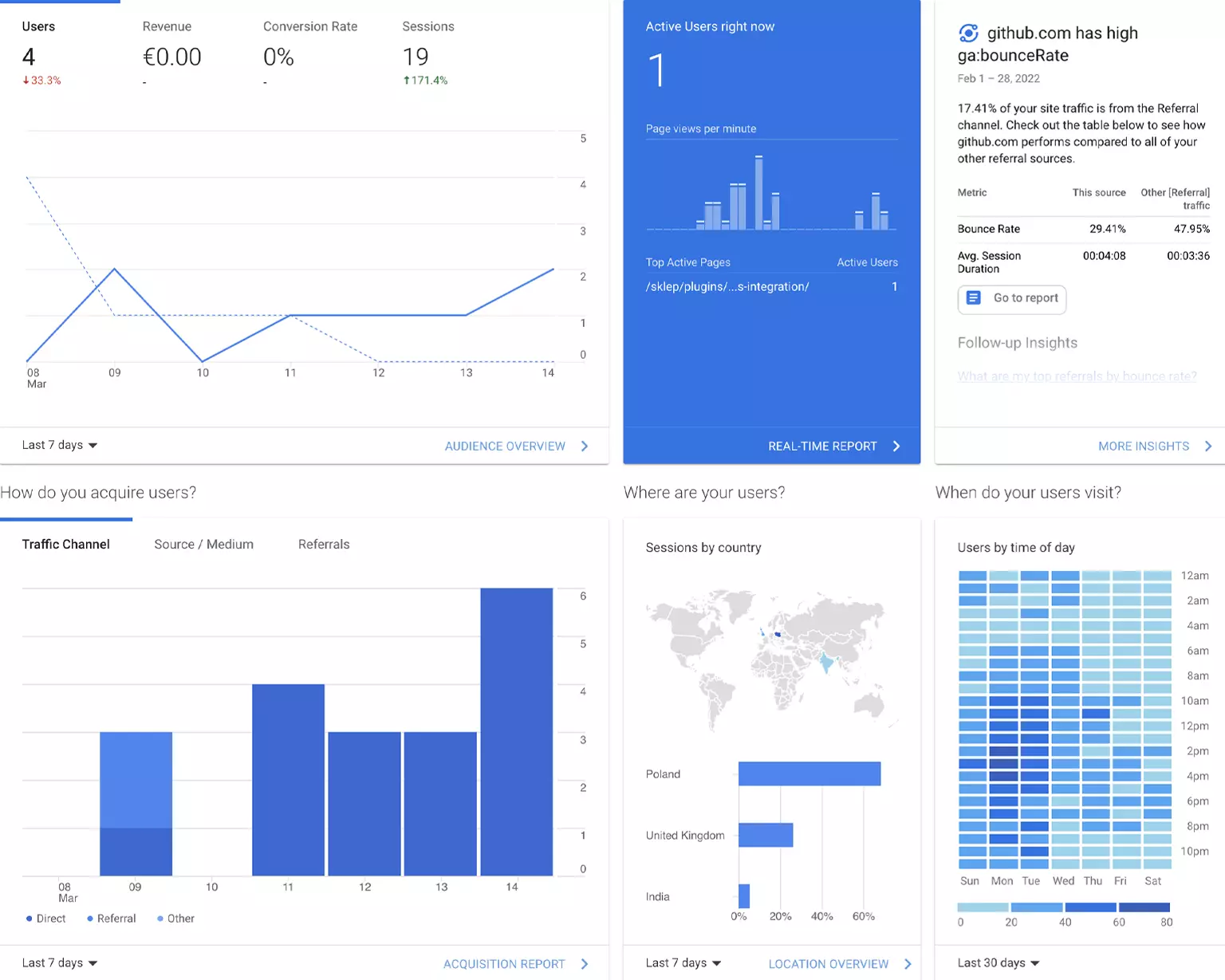
Turn site activity into practical decisions
Google Analytics brings traffic, engagement, content, and campaign data together in one reporting platform. See how people reach your site, which pages hold their attention, and which actions contribute to the goals you care about.
The plugin handles the connection from Publii, so you do not need to paste tracking snippets into a theme or repeat the setup after a theme update. Add your Google tag or Tag Manager container ID, choose your consent settings, and publish the site.
Before you start: The Publii plugin is free. Google Analytics and Google Tag Manager are separate services operated by Google. You need a Google account and a current Google tag ID or Tag Manager container ID. Review Google’s terms and configure your privacy notice and consent settings for the requirements that apply to your website.
See where visitors come from and what they do
Google Analytics provides ready-made reports and flexible analysis tools for understanding acquisition, engagement, content performance, and key events.
- Compare traffic from search, referrals, social networks, campaigns, and direct visits.
- See which pages visitors view and how they engage with your content.
- Monitor active visitors, viewed pages, events, and key events in Realtime reports.
- Measure the events and key events configured for your Google Analytics property.
- Understand the devices, browsers, locations, and other user attributes available in your reports.
- Build audiences and comparisons around the behavior that matters to your site.
Use the Google tag or Google Tag Manager
Choose the direct Google tag for a focused setup that sends data to the destination connected to your tag ID. The plugin accepts current Google Analytics, Google tag, Google Ads, and Floodlight ID formats and lets you control the initial page view or add further gtag commands.
Select Google Tag Manager when you prefer to manage Google and third-party tags through a GTM container. The plugin installs the standard container code in your generated Publii site while leaving tag configuration and triggers under your control in Google Tag Manager.
Choose how measurement responds to consent
The plugin works with Publii’s built-in Cookie Banner and offers two distinct approaches. Choose the one that matches your privacy requirements and measurement setup.
- Complete pre-consent blocking: Hold the Google tag or the entire GTM container until the visitor accepts a selected Cookie Group. No Google script or request from the integration is loaded before consent.
- Google Consent Mode v2: Load the tag immediately after applying Publii’s saved or default consent state. When consent is denied, supported Google tags can send measurements without cookies; the state changes when the visitor updates their choices.
Blocking a GTM container also blocks every tag inside it. If the container includes tags with different purposes, configure your Cookie Groups and consent mappings with care.
Plugin features
- Connect Publii through the current Google tag or Google Tag Manager.
- Accept G-, GT-, AW-, and DC- Google tag IDs or a GTM- container ID.
- Send the initial page view automatically or disable it when another integration handles that event.
- Add optional gtag commands after the main Google tag configuration.
- Use a Google-issued Developer ID registered for the Publii CMS integration.
- Block the complete Google tag or GTM container until a selected Publii Cookie Group is accepted.
- Use Publii’s Google Consent Mode v2 settings for analytics and advertising consent signals.
- Optionally include the integration in Publii Preview for testing.
- Validate tag IDs, container IDs, and Cookie Banner settings before generating code.
Connect Google Analytics in three steps
- Create or open your Google Analytics property or Google Tag Manager container and copy its current ID.
- Enable the plugin in Publii, choose the integration method, and enter the ID.
- Configure page-view, Preview, and consent settings, then publish the site.
For detailed setup instructions and explanations of each consent option, read the Google Analytics plugin documentation.
Connect Google Analytics to Publii and turn traffic and engagement data into clearer decisions about your content, campaigns, and site experience.
What you get
- Unlimited use - forever, on any number of domains
- Free to use for both personal and commercial projects
- Community support through the forum
Details
- Author:
- Publii Team
- Version:
- Updated:
- Aug, 29 2026
Requirements and compatibility
- Browser:
- Edge, Firefox, Chrome, Safari, Opera
- Requirements:
- Publii 0.45 and up