Favicon Studio
Favicon Studio creates and installs a complete favicon set from one PNG, JPEG, WebP, or SVG image. Adjust the browser, Apple touch, web app, and maskable variants inside Publii, then generate the ICO, SVG, PNG, and web manifest files used by your website.
Make your site recognizable wherever its icon appears
Visitors see your site icon in more places than the browser tab. It also appears in bookmarks, browsing history, home-screen shortcuts, and installed web apps. If the required variant is missing or the artwork does not fit its format, a device may show a generic icon, excessive empty space, or a cropped logo.
A free online generator can create the image files, but it does not maintain their integration with your Publii site. You still need to decide which formats are required, adjust the artwork, upload the files, update the head markup, remove old references, and repeat the process after a rebrand.
Favicon Studio keeps the source image, platform-specific adjustments, generated files, and site markup in one Publii workflow. When the artwork changes, replace the source, review the previews, and generate the set again. There is no need to edit the theme or send the image to an external service.
On one website, this removes a repetitive setup task and reduces the chance of leaving an old or missing icon behind. If you maintain several Publii sites, the unlimited-domain license lets you use the same workflow for every project.
Create the main favicon formats from one image
Browsers, bookmarks, Apple devices, installed web apps, and operating-system launchers use different icon formats and sizes. Favicon Studio generates them as one set and automatically adds the required references to your site’s head section:
- multi-size favicon.ico containing 16, 32, and 48 px icons;
- 96 × 96 px PNG browser icon;
- vector favicon.svg when the source image is SVG;
- 180 × 180 px Apple touch icon;
- 192 × 192 and 512 × 512 px standard web app icons;
- 192 × 192 and 512 × 512 px maskable web app icons;
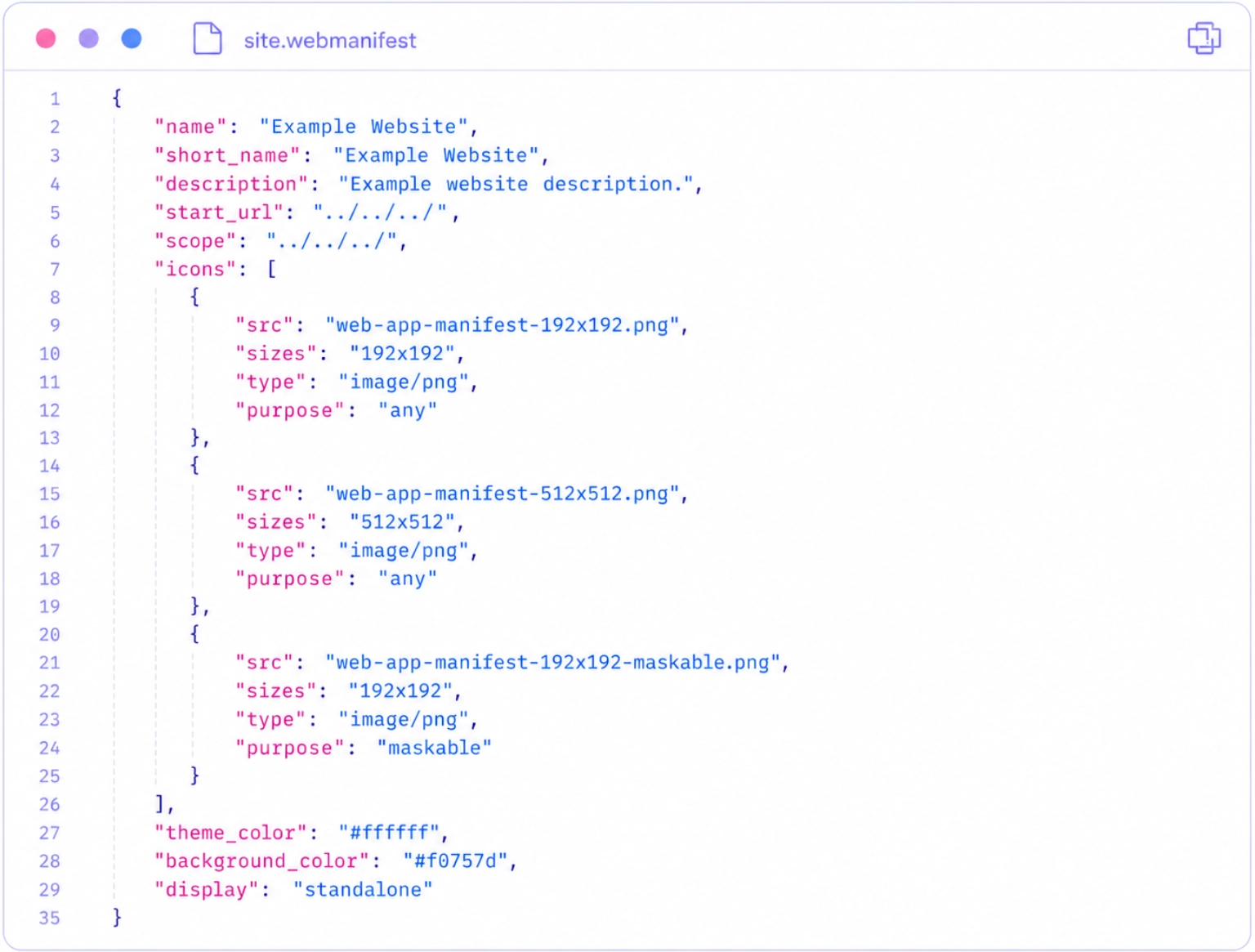
- site.webmanifest file that connects the web app icons and display settings.
A raster source produces eight files. An SVG source also produces the vector browser favicon, bringing the set to nine files.
Adjust the artwork for each platform
The four previews at the top of the editor also act as navigation. Select Browser, Apple touch, Web app, or Maskable to open the settings for that variant. The previews update while you work.
Artwork size controls how much of the available icon area the source image occupies. It does not change the required output dimensions. You can make the browser artwork easier to read at small sizes, give the Apple icon more surrounding space, and keep maskable artwork inside its safe area without preparing separate source files.
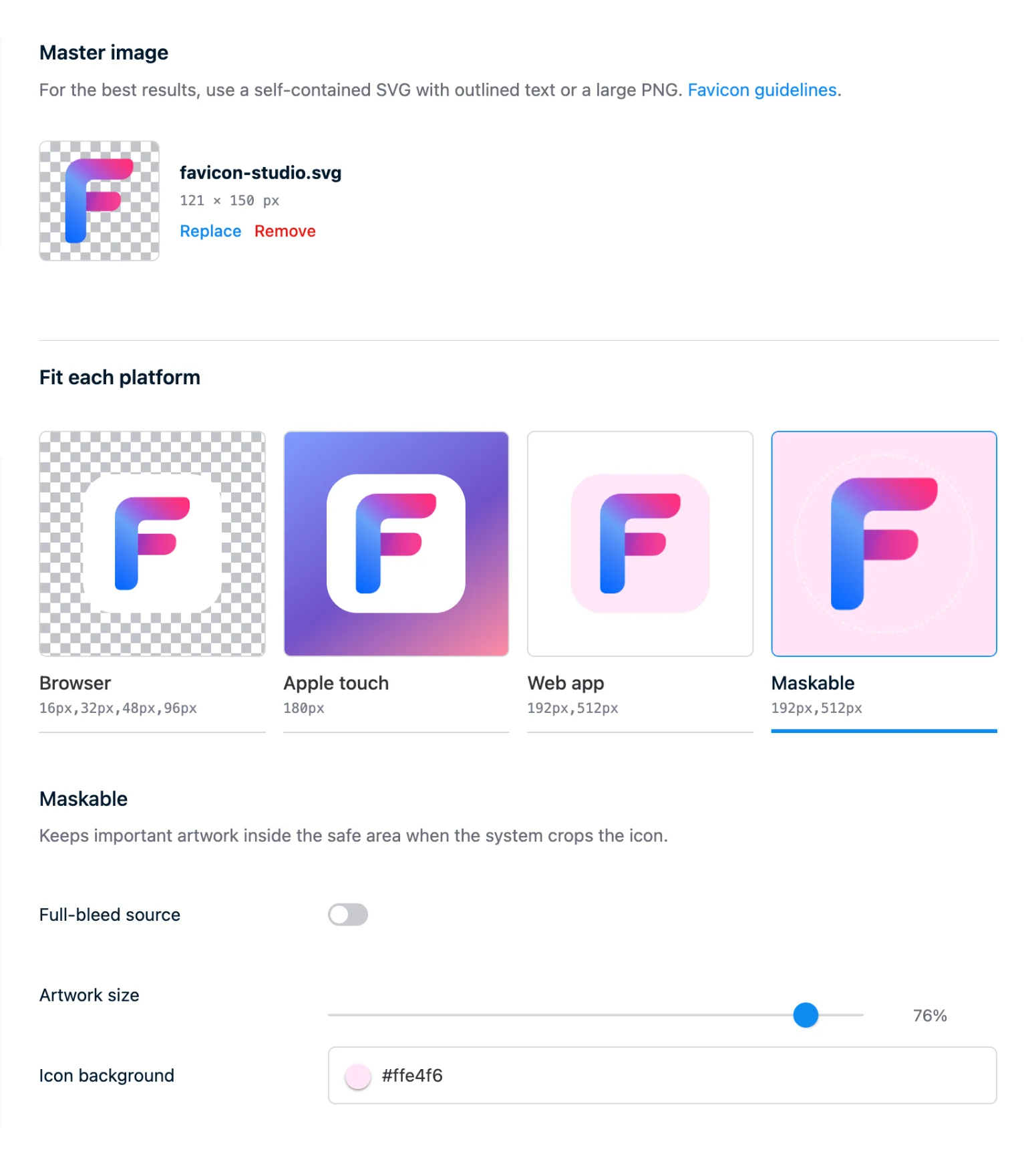
Favicon Studio chooses a neutral starting background based on the uploaded artwork. Each variant has its own background setting, and the editor marks previews where the artwork may blend into the selected color.
Browser and standard web app icons can use a transparent or solid background. A solid browser background also has an adjustable corner radius. The web app settings cover the launch-screen background and browser theme color stored in the manifest.
The Maskable preview shows the minimum safe area used by platform masks. The default mode keeps the artwork within that area. If the source is already prepared as an edge-to-edge maskable icon, Full-bleed source fills the canvas and crops the image when needed.
Keep an SVG source as a vector favicon
When you provide a self-contained SVG, Favicon Studio sanitizes the document and uses it to create a vector favicon.svg. The Apple and web app PNG files are rasterized independently from the vector source at their required sizes.
PNG, JPEG, and WebP uploads remain raster sources. The plugin does not place them inside a redundant SVG wrapper or convert them to WebP before generating the favicon files. It renders each size from the retained source with high-quality oversampling and progressive downscaling.
For the best results, use a self-contained SVG with outlined text or a large square PNG. See the Favicon Studio documentation for source-image guidance.
Use your Publii site identity in the web manifest
During site generation, the manifest reads the website name and description from Publii’s Site settings. Leave the identity fields empty to use these values.
App-name and short-name overrides are available when the installed web app should display a different label. These values affect the manifest and Apple web app title without changing the website name in Publii.
Add favicon markup without editing the theme
Favicon Studio writes the generated files to the website’s plugin media directory and adds their tags through Publii’s native publiiHead insertion. It suppresses the favicon selected in the active theme and removes competing icon or manifest tags from the generated <head>.
The cleanup is limited to favicon, Apple touch, mask icon, manifest, and Apple web app title markup. Stylesheets, canonical links, scripts, and other metadata remain untouched. A fallback handles themes that contain hard-coded favicon tags or do not place the insertion where expected.
The Advanced section can add a revision suffix such as ?v=… to icon and web manifest URLs. The option is disabled by default and is useful when a browser continues to serve files from an older generated set.
Generate the files locally
The editor and image processing run on your computer inside Publii. Favicon Studio does not send the source image to an external generator or image service.
The resulting files are ordinary static assets. Publii creates them during rendering and publishes them with the rest of the website.
* Plus VAT for EU customers
What's included
- Unlimited use - forever, on any number of domains
- 12 months of access to files and updates
- 3 months of premium support included
- 100% ready for personal and commercial use
- One-time payment - no automatic renewals, optional update access at 50% off
Details
- Author:
- Publii Team
- Version:
- Updated:
- Sep, 28 2026
Requirements and compatibility
- Browser:
- Edge, Firefox, Chrome, Safari, Opera
- Requirements:
- Publii 0.47.x and up
Get 3 months of professional support
Getting started with a new plugin on a new website can be a challenge, but our experts are here to help. Every purchase of the commercial plugin includes three months of support through our dedicated ticket system, so you'll have efficient and effective assistance with any issues you run into.